The Hayu App Is Broken on Skyworth Android TVs — and Nobody Told You How to Fix It (Warning: Fix no longer works)
Days later they must have updated their server because this fix no longer works! HAYU apparently doesn’t want to keep their customers.
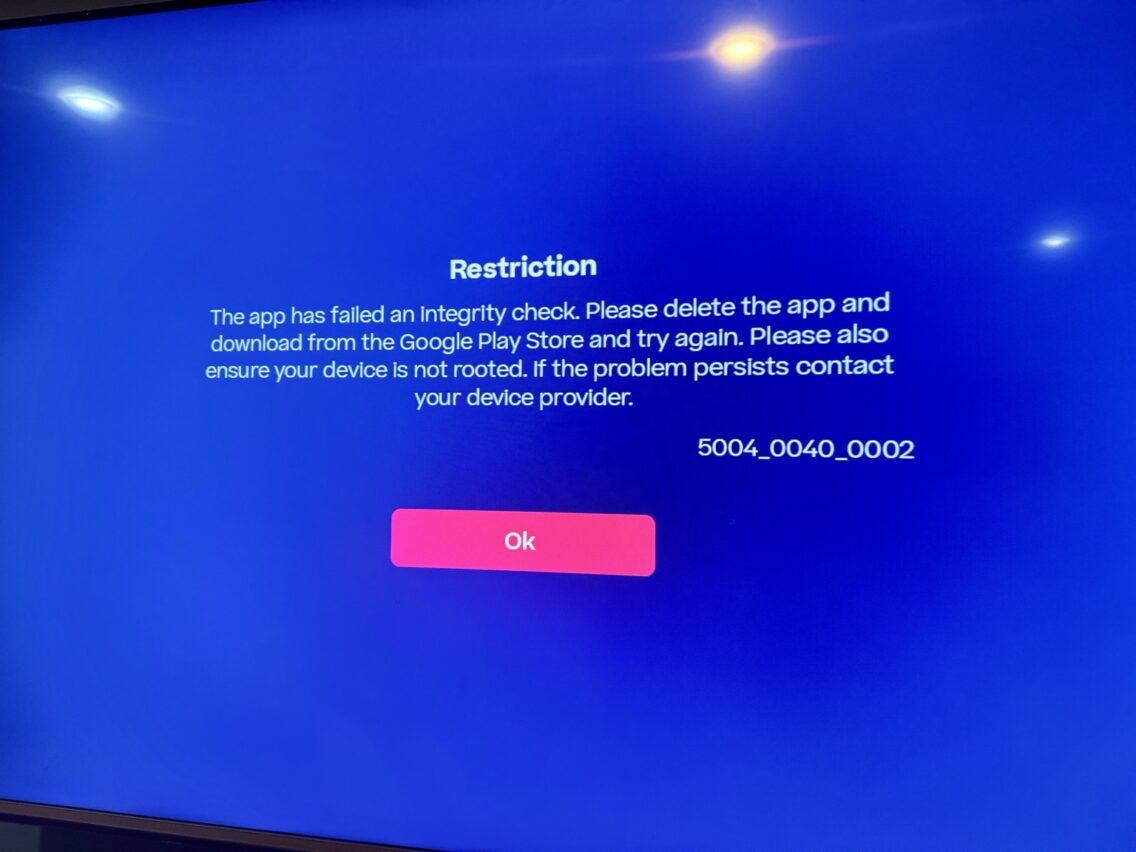
If you own a Skyworth Android TV and subscribe to Hayu, you may have recently encountered this screen:
You’ve deleted the app. You’ve reinstalled it. You’ve cleared the cache. You’ve restarted the TV seventeen times. You’ve contacted Hayu support, who told you to reinstall the app. You’ve tried ChatGPT. You’ve scoured Reddit threads from 2019. Nothing works.
This is the story of a fix that nobody — not Hayu, not Skyworth, not any tech support forum — has been documenting. And it takes about two minutes.
What the error actually means
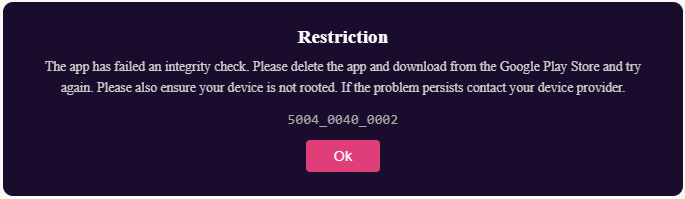
Error 5004_0040_0002 is Hayu’s integrity check failing. The app uses Google’s Play Integrity API to verify the device environment before allowing playback — a DRM requirement common to streaming services. On Skyworth Android TVs, this check fails not because your device is rooted or the app is corrupt, but because the Hayu app is denied the system permissions it needs to complete the check.
By default on these TVs, apps are granted almost no permissions. That’s fine for most apps — but Hayu apparently requires explicit permission grants to pass its own integrity check. Hayu’s support team doesn’t seem to know this. Their official troubleshooting guide doesn’t mention it. The error message itself points you in completely the wrong direction.
“Hayu’s own support team suggested reinstalling the app. The real fix is in a settings menu they never mentioned.”
The actual fix
Step-by-step: Fix Hayu integrity check on Skyworth Android TV
- Go to Settings → Apps on your TV. Enable the option to show system apps (usually a toggle or a filter menu at the top).
- Find Google Play Services in the app list. Open it, go to Permissions, and grant every permission available. These are typically disabled by default.
- Go back to Settings → Apps and find the Hayu app.
- Open Permissions inside the Hayu app settings and enable every permission listed. By default, all of these are off.
- Launch Hayu. The integrity check should now pass, and you should be watching your shows
That’s it. No factory reset required. No streaming stick purchase needed. No more crying at the TV.
Why this isn’t documented anywhere
Skyworth is not the most common Android TV brand in Western markets, which means it gets less attention when something breaks. Hayu’s integrity checking behaviour appears to have tightened at some point — possibly after an app update — causing devices that previously worked fine to suddenly fail the check. Since Hayu’s support team troubleshoots based on a standard script (reinstall, check for rooting, contact device provider), and Skyworth’s support is not familiar with Hayu’s internals, the problem falls into a gap between two companies who each assume the other is responsible.
The permissions fix works because granting those permissions allows Google Play Services and Hayu to properly attest device integrity — the check can complete successfully, and playback is unlocked. It’s a configuration issue, not a hardware incompatibility.
If you’re still stuck
If the steps above don’t resolve it, also try: updating your TV’s firmware via Settings → About → System Update, and making sure Google Play Services itself is up to date via the Play Store. An outdated Play Services build can sometimes also block the integrity check independently of permissions.
And if you found this post after weeks of searching — welcome. You’ve found the answer. Pass it on.